Layered PSD from a flat image
Turn any flat image into an editable layered PSD
Upload a product photo, screenshot or AI image. Get the subject and the background as two separate layers in one file — no manual masking, no cutting paths by hand.
- 3 free images
- No subscription
- Failed jobs refunded
- Files deleted after 7 days
Try it with your own image
Choose an image before signing in. Sign in is required to process it.
How it works
- 1
Choose an image
JPG, PNG or WEBP, up to 15 MB. Nothing is uploaded until you sign in and start — you can pick a file and look at it first.
- 2
We split it into two layers
The subject is cut out with its transparency intact. Where the subject covered the background, that area is rebuilt by AI.
- 3
Download the PSD
One file with two named layers — Background and Subject — ready to open in Photoshop or GIMP.
Real output, not a mockup
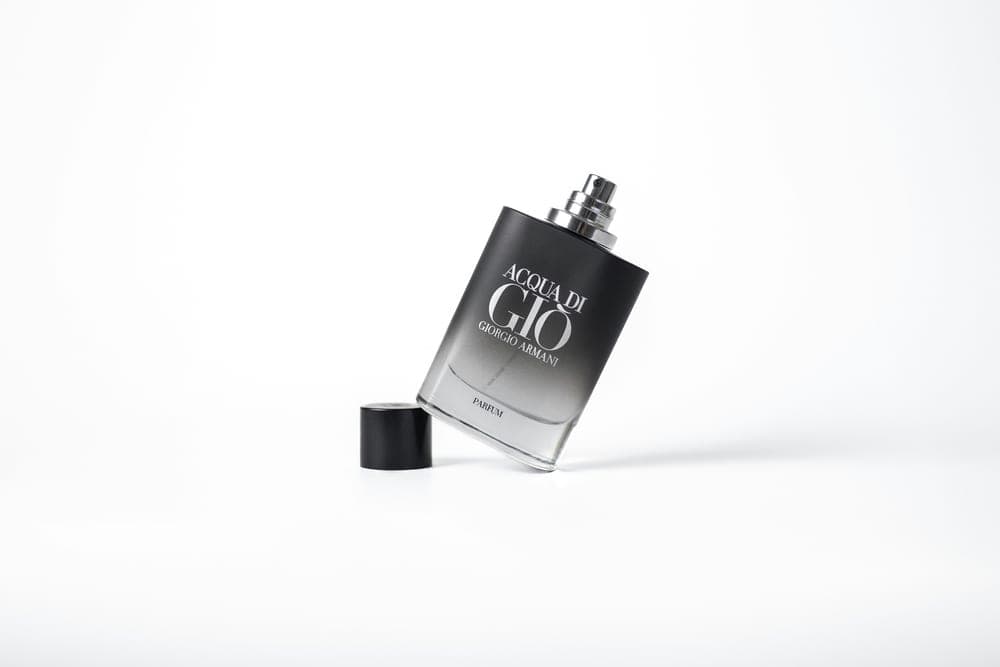
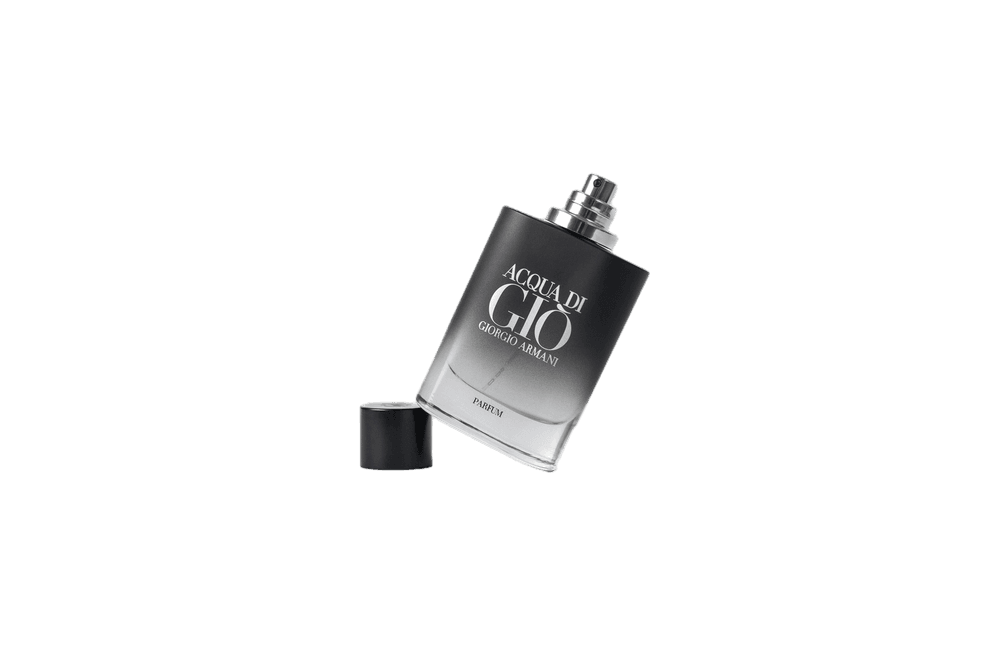
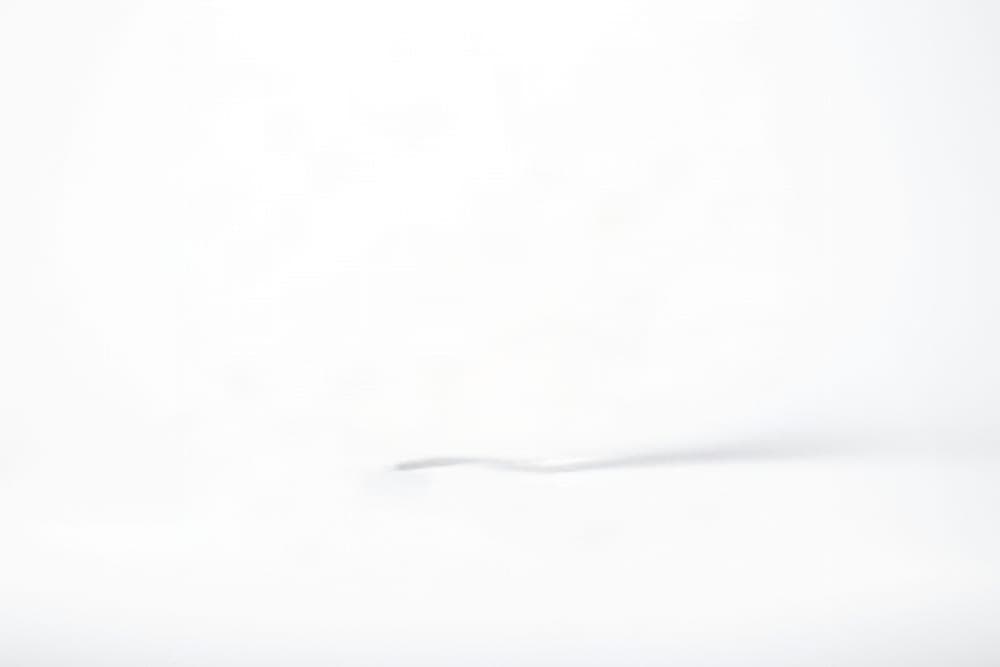
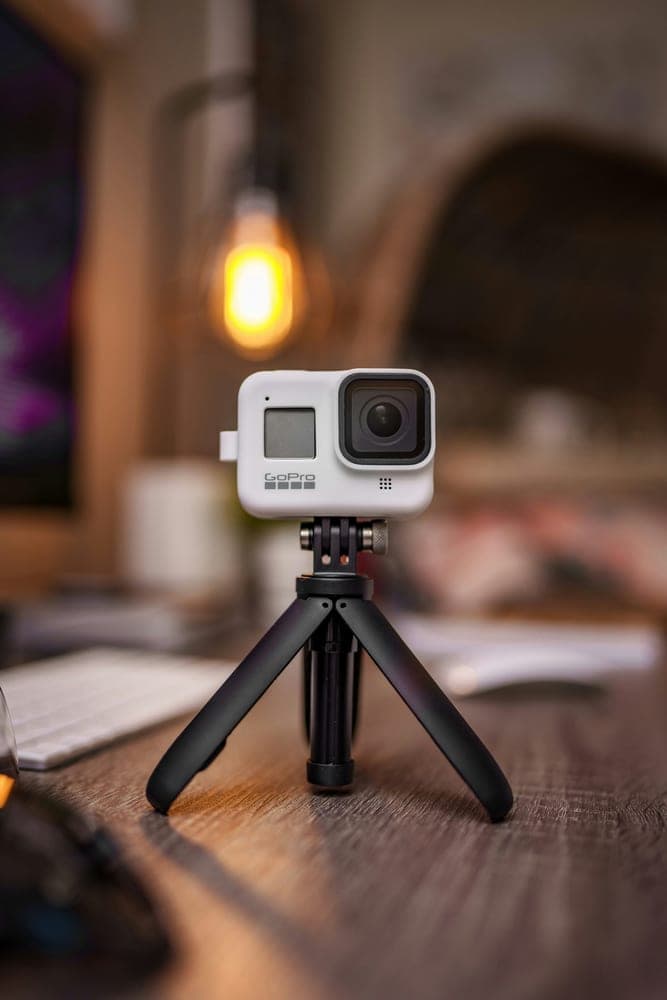
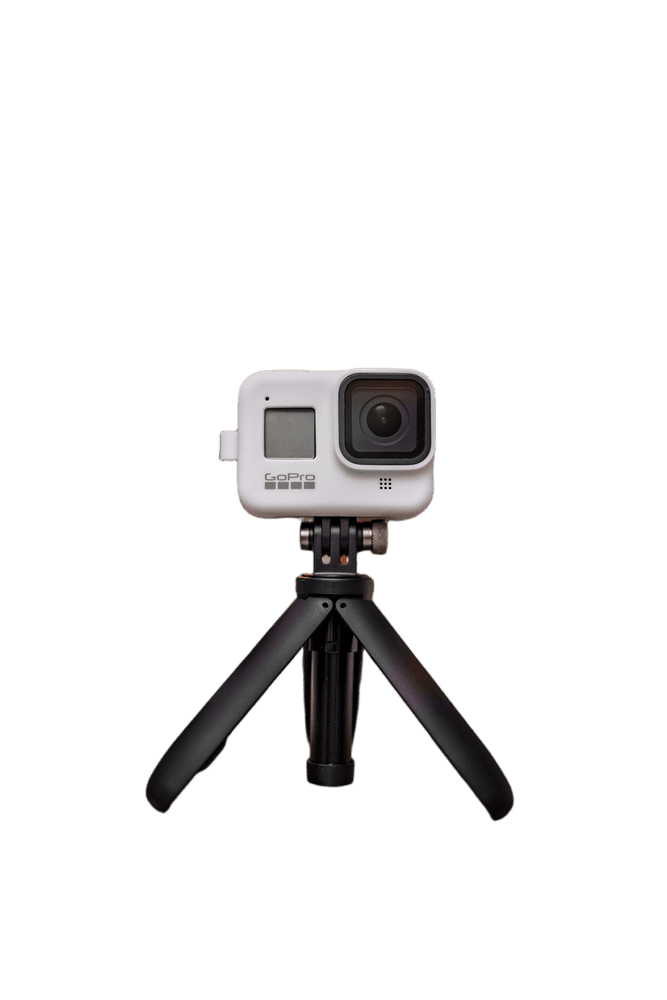
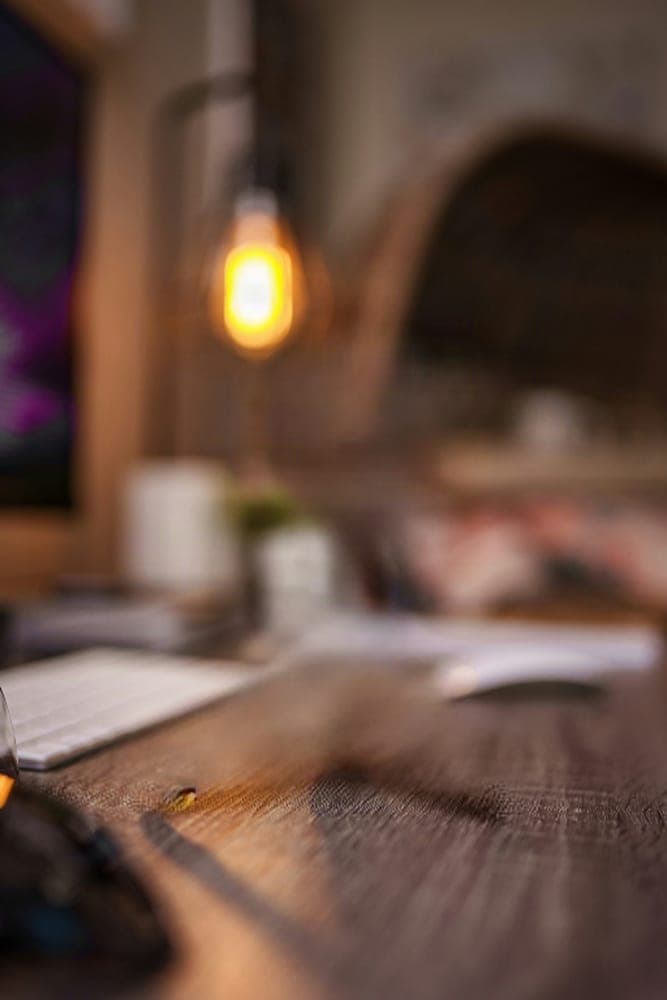
These three examples are the live pipeline's own output, unretouched. The subject layer keeps its transparency; the background layer is the scene with the subject removed and the gap filled in.
Plain background with text
Busy background
Occluded subject
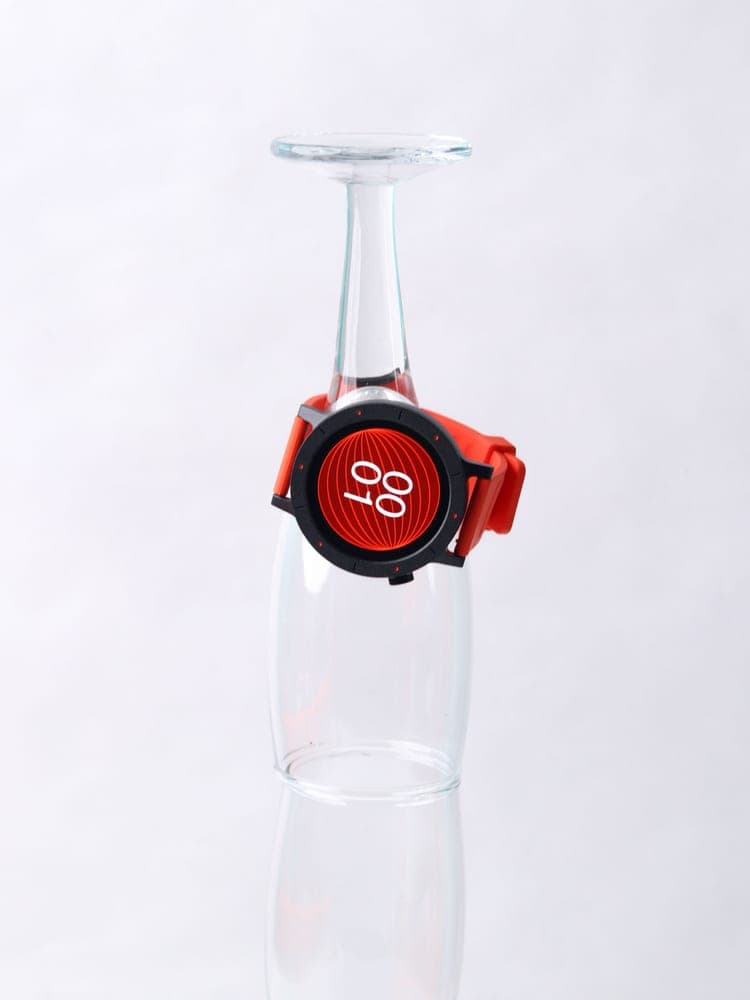
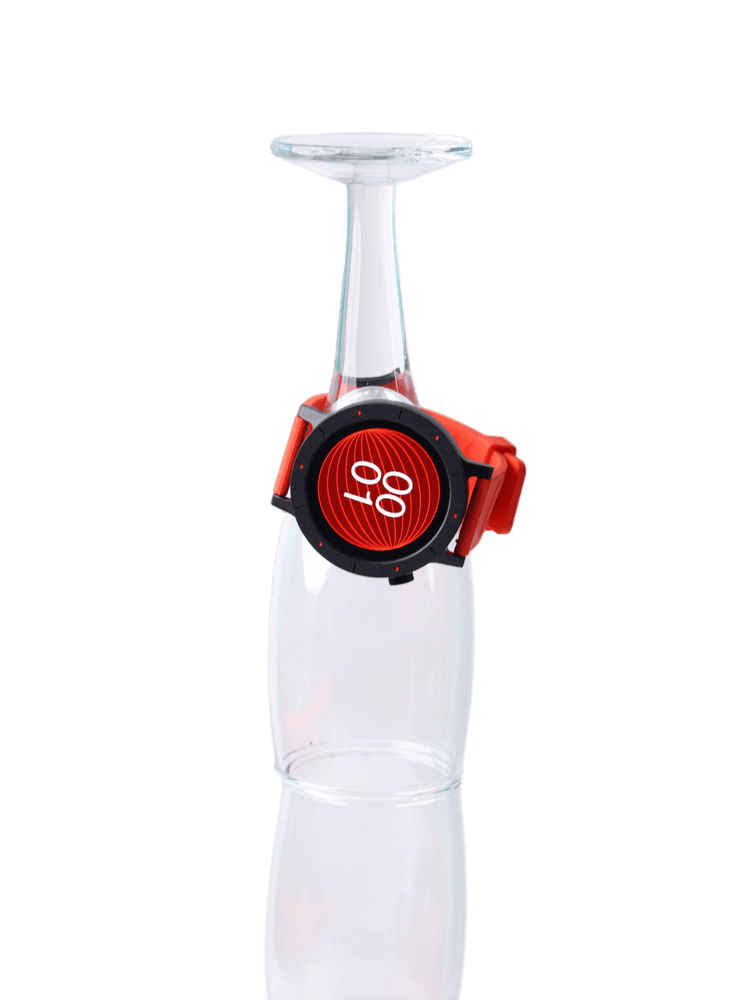
Where the subject covered the background, that area is rebuilt by AI. Those pixels were never in your photo, so what you get there is a plausible fill rather than the original scene. On plain backgrounds it is usually invisible; on busy, textured backgrounds expect soft detail in that patch. Look at the busy-background example above — that is the honest worst case.
Pricing
Buy credits, use them whenever. One credit is one image. No subscription, nothing recurring.
Starter
Checkout is being connected.
Bundle
Best valueCheckout is being connected.
- Every new account starts with 3 free images.
- A failed job refunds its credit automatically.
- Processing usually takes 2 to 4 minutes per image.
Frequently asked questions
What exactly do I get?
A layered PSD with two layers: Background (the scene with your subject removed and the covered area rebuilt) and Subject (your subject cut out with a transparent surround). Both layers share the same pixel dimensions as each other. Note the output is resized: the longest edge is capped at 1536 px and dimensions are rounded down to a multiple of 16, so a very large — or oddly sized — original comes back smaller. Editable text layers are not in this version; text stays part of the pixels.
What does “rebuilt by AI” mean for the background?
Where your subject was sitting, there are no original pixels to recover — they were never in the photo. The AI paints a plausible continuation of the surrounding background there. On plain, even backgrounds that fill is usually invisible. On busy or highly textured backgrounds you may see soft or smudged detail in that patch. It is a fill, not a recovered original.
How long does it take?
Most images finish in 2 to 4 minutes. Busy scenes and peak hours can take longer. The page updates on its own, so you can leave it and come back.
What if it fails?
The credit for that job is refunded automatically — you are not charged for a failed run. You can retry the same image or use a different one.
How long are my files kept?
Your original and the results are deleted after 7 days. You can delete a job and its files earlier from your account page.
Which images work best?
Product shots, screenshots and AI-generated images with a single clear subject. Hard cases are transparent or reflective materials, fine hair and fur, and several overlapping subjects — expect rougher edges there.